

 This is the sixth post in the series on how to install the Connector for Microsoft Dynamics GP; the first five posts covered the prerequisites, installation, adapter configuration, creating a new integration and preparing data for integration.
One of the things that needs to be done before integrating Microsoft Dynamics GP with Microsoft Dynamics CRM is to synchronise the CRM picklists with data in GP. This can be done using the supplied Microsoft Dynamics CRM Picking Sync utility which is installed along with the Connector for Microsoft Dynamics.
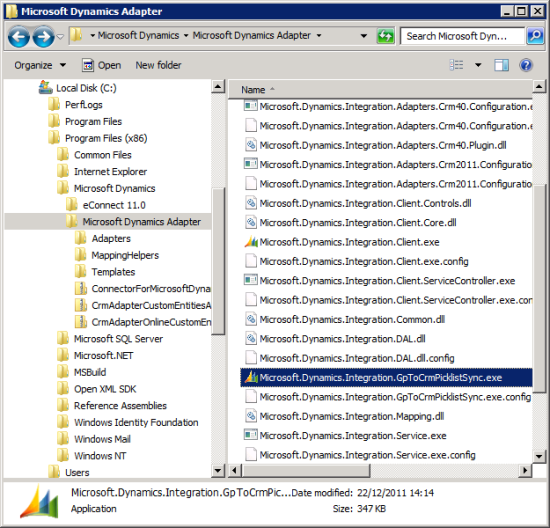
There is no menu item created for this utility, so you will need to open Windows Explorer and navigate to the installation folder () and double click the Microsoft.Dynamics.Integration.GpToCrmPicklistSync.exe;
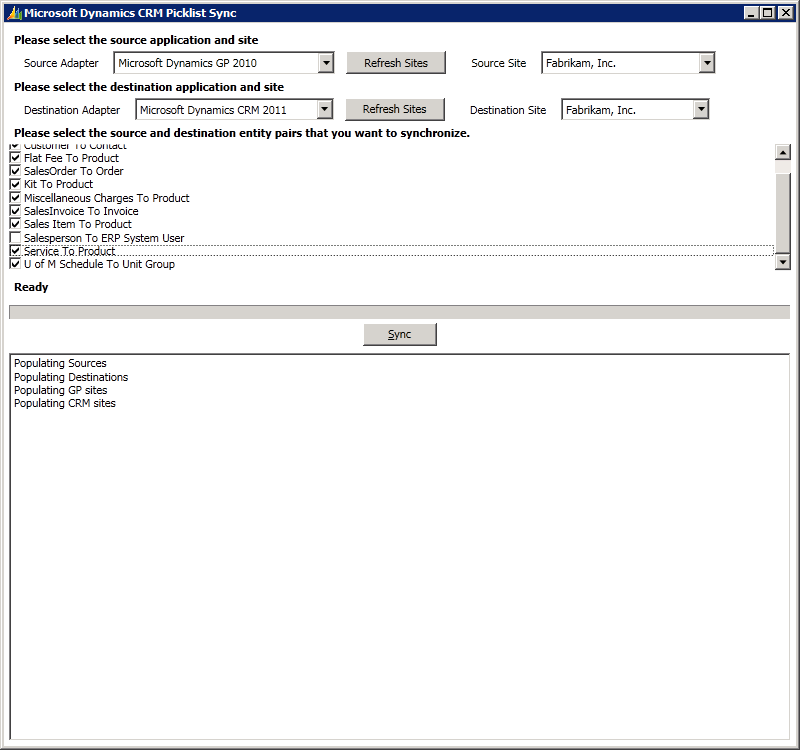
When the Picklist Sync is opened it will connect using the configured adapters and default in the information it can.
In this example, I am synchronising Fabrikam, Inc. in GP to the same company in CRM and will synchronise all picklists except for the Salesperson To ERP System User. When ready to run the synchronise, click the Sync button;
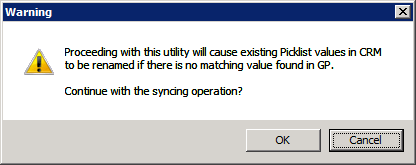
Before running the Picklist Sync utility will display a warning that picklists in CRM will have their values renamed if there is not a corresponding value found in GP. Confirm you want to continue with the syncing operation by clicking OK;
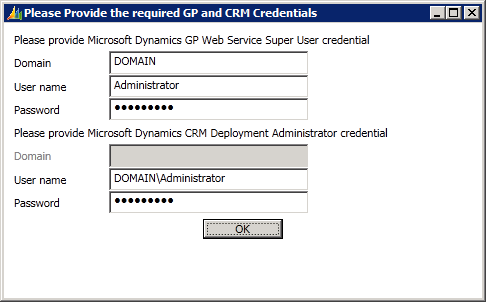
You will need to enter details of a Microsoft Dynamics GP Web Service Super User Account (specified in the Dynamics Security Console) and a Microsoft Dynamics CRM Deployment Administrator to proceed;
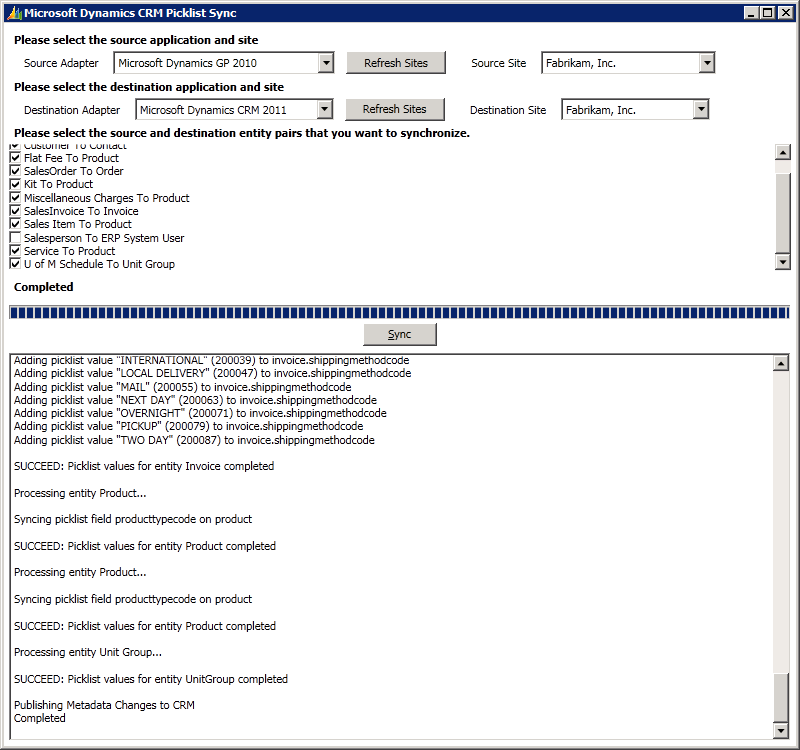
After entering your user accounts in the last window, the Picklist Sync will display progress of the synchronisation before confirming completion;
What should we write about next?
If there is a topic which fits the typical ones of this site, which you would like to see me write about, please use the form, below, to submit your idea.
Greate series! I just wanted to add that this step is no longer required if using version 2.1.29.1 or greater of Connector for Microsoft Dynamics. We have removed the Picklist Sync Utility and replaced it with a map (Enumerated values To Picklist) that needs to be run first as part of the initial sync process.
Thanks, Chris for the update.
I’ll check what version I was on and look to do an upgrade to get to the right version.
Ian
Hi,
This series of posts are awesome. I am facing a problem where I am not able to find the picklistsync utlity on my installation folder. Any guess to what could have gone wrong!
Naveed Saqib
Hi Naveed,
If you’re using a later version of Connector then as Chris pointed out the Picklist Sync has been removed and replaced with an item in Connector itself.
Ian