

How To Install Connector for Microsoft Dynamics GP – Installation

This is the second post in the series on how to install the Connector for Microsoft Dynamics GP; the first post covered the prerequisites.

When the Connector for Microsoft Dynamics GP setup utility is run, the first window is just a welcome screen, so click next;
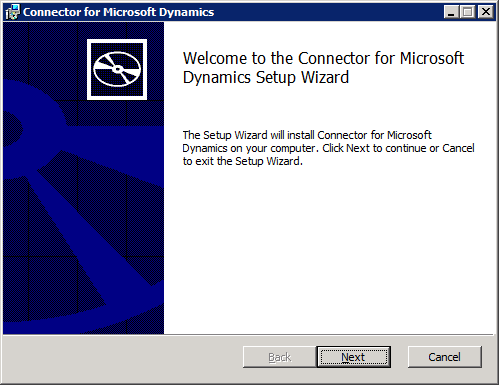
Connector for Microsoft Dynamics - Welcome to the Connector for Microsoft Dynamics Setup Wizard

Next is the ubiquitous End-User License Agreement to accept;
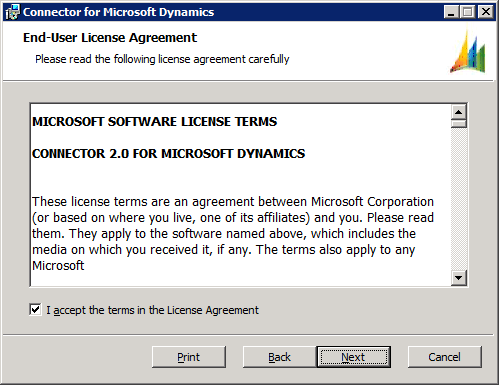
Connector for Microsoft Dynamics - End-User License Agreement

Next enter the License key obtained from Order Central (customers will need to get the license key via their Partner);

Connector for Microsoft Dynamics - Registration Information

Enter the Server Name of the machine hosting the Microsoft SQL Server (in this example the SQL server I’m using is AZC-SQL1);
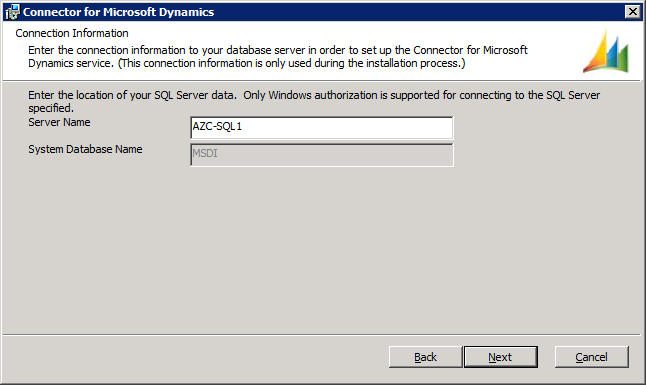
Connector for Microsoft Dynamics - Connection Information

Enter the Service Account ID of the Domain User account which will be used for the Connector for Microsoft Dynamics service;
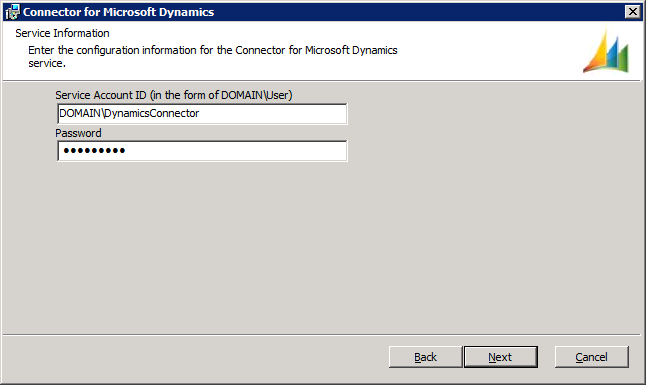
Connector for Microsoft Dynamics - Service Information

The final step of the wizard is to click Next to start the installation;
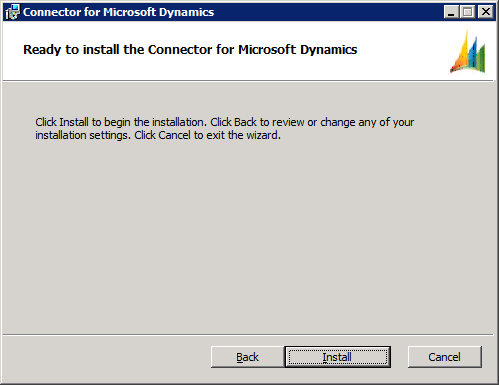
Connector for Microsoft Dynamics - Ready to install the Connector for Microsoft Dynamics

After the installation completes a window will be displayed confirming this;
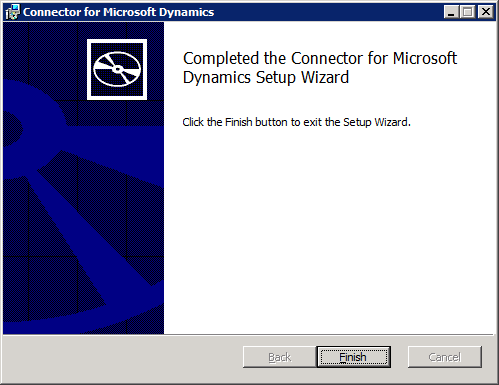
Connector for Microsoft Dynamics - Completed the Connector for Microsoft Dynamics Setup Wizard

In the next post, I’ll cover configuring the required Adapters.

Ian Grieve

About Ian Grieve

Ian is a Microsoft Dynamics GP certified consultant specialising in the delivery of Microsoft Dynamics GP projects and currently working for Perfect Image Ltd., a Microsoft Partner and VAR in the North East of England. Ian has worked with Microsoft Dynamics GP since 2003 and, over the nine years since, has dealt with all aspects of the product life-cycle from presales, to implementation, to technical and functional training, to post go-live support and subsequent upgrades and process reviews. In his spare time, Ian runs the azurecurve | Ramblings of a Dynamics GP Consultant blog dedicated to Microsoft Dynamics GP and related products.
This entry was posted in CRM, Dynamics, FRx, GP, Microsoft and tagged , , , , , , , , , , , . Bookmark the permalink.

5 comments on “How To Install Connector for Microsoft Dynamics GP – Installation

  1. Pingback: How To Install Connector for Microsoft Dynamics GP – Installation | coralcurve

  2. Pingback: How To Install Connector for Microsoft Dynamics GP – Installation : Interesting Findings & Knowledge Sharing

  3. Pingback: How To Install Connector for Microsoft Dynamics GP – Installation | azurecurve – 9/6, DynamicAccounting.net | Partner Compete

  4. Pingback: How To Install Connector for Microsoft Dynamics GP – Installation | azurecurve - DynamicAccounting.net - GP Technical Blogs - Microsoft Dynamics Community

  5. Pingback: How To Install Connector for Microsoft Dynamics GP – Create A New Integration | azurecurve

Leave a Reply

Your email address will not be published. Required fields are marked *

*

You may use these HTML tags and attributes: <a href="" title=""> <abbr title=""> <acronym title=""> <b> <blockquote cite=""> <cite> <code> <del datetime=""> <em> <i> <q cite=""> <strike> <strong>