

 Now that the web services are installed and configured it is time to make sure that they have installed correctly. The Microsoft documentation for Web Services Installation and Administration Guide starts by checking the services are running via the browser and I’ll come to this in a moment, but I always prefer to start with making sure the services are actually running.
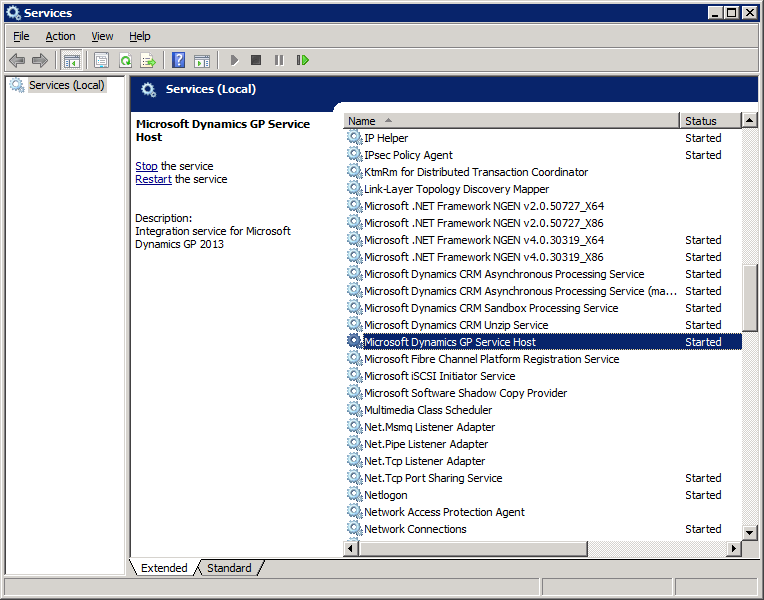
This is done in the Services window ().
The first service to check for is the Microsoft Dynamics GP Service Host. If the service has a Status of Started then the service is running correctly;
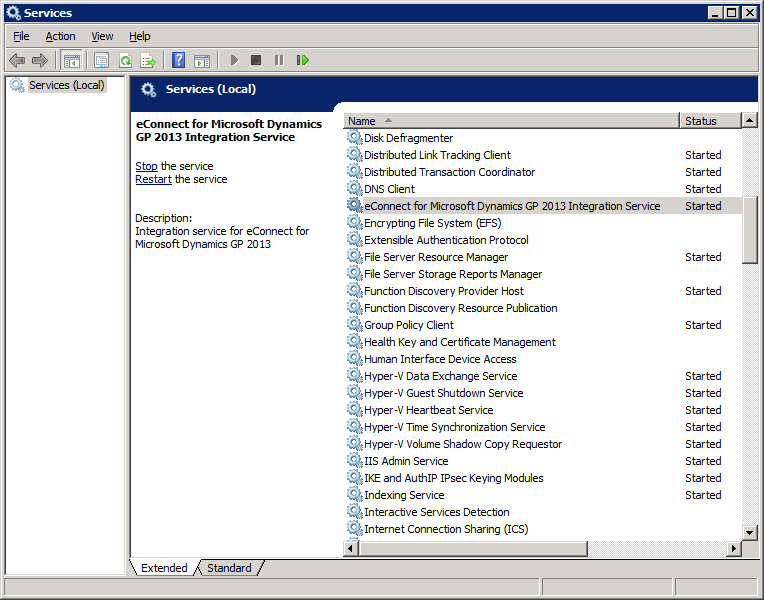
The second one is the eConnect for Microsoft Dynamics GP 2013 Integration Service;
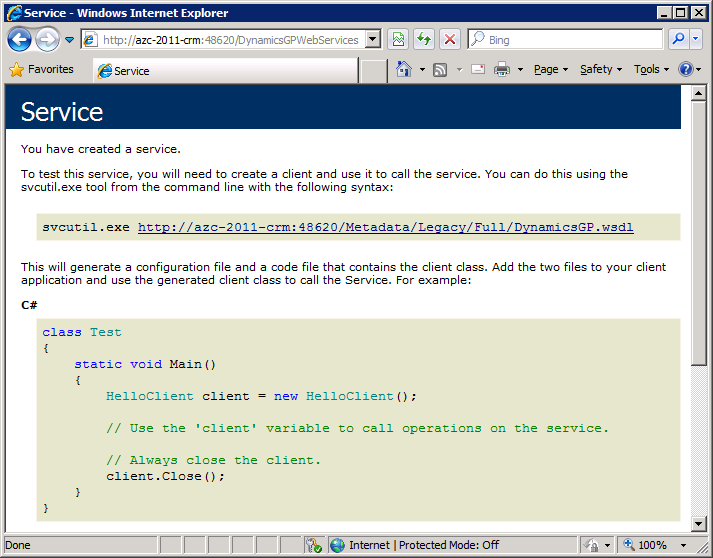
Next, we need to check that the Dynamics GP service legacy endpoint is functioning correctly. To check this open Internet Explorer and navigate to http://machine_name:port/DynamicsGPWebServices where machine_name is the name of the server where the Web Services for Microsoft Dynamics GP was installed and where port is the selected port (which is 48620 by default). If you see a page similar to the below then the legacy endpoint is available working normally;
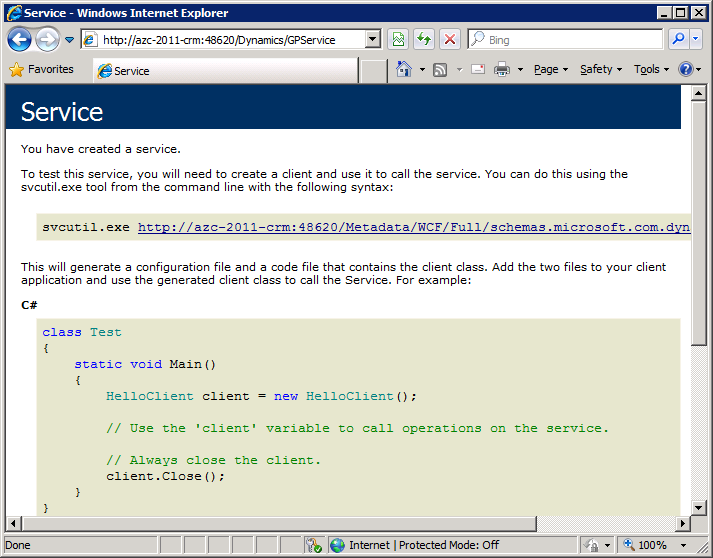
Next, check the Dynamics GP service native endpoint is running and working by opening Internet Explorer and navigating to http://machine_name:port/DynamicsGPWebServices where machine_name is the name of the server where the Web Services for Microsoft Dynamics GP was installed and where port is the selected port (which is 48620 by default). If you see a page similar to the below then the native endpoint is available working normally
The final item we need to verify is the Dynamics Security Service. To check this, open the Dynamics Security Console ();
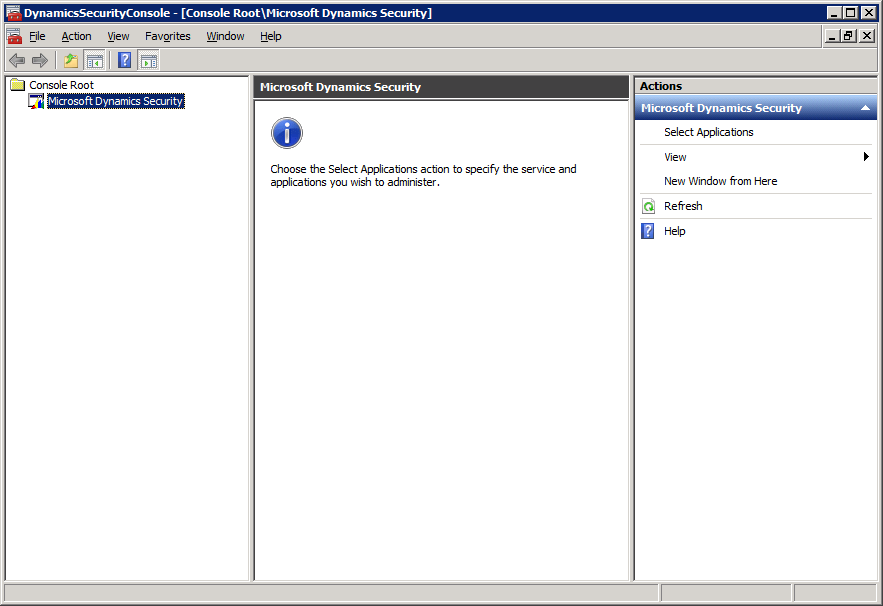
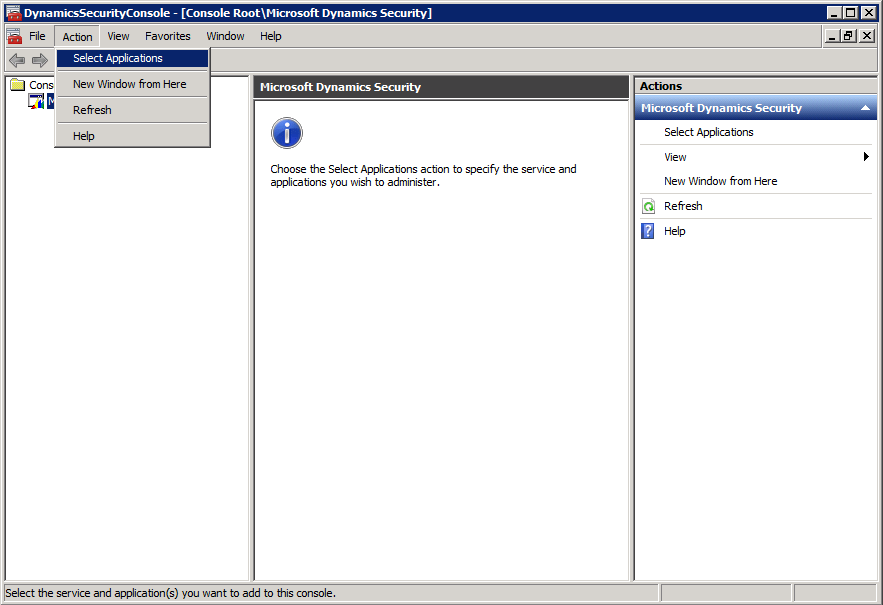
Click on Action and choose Select Applications;
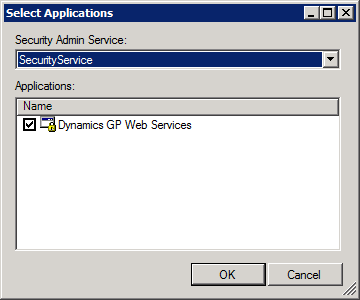
In the Security Admin Service dropdown list, select Security Service and mark the Application Dynamics GP Web Services checkbox and then click OK;
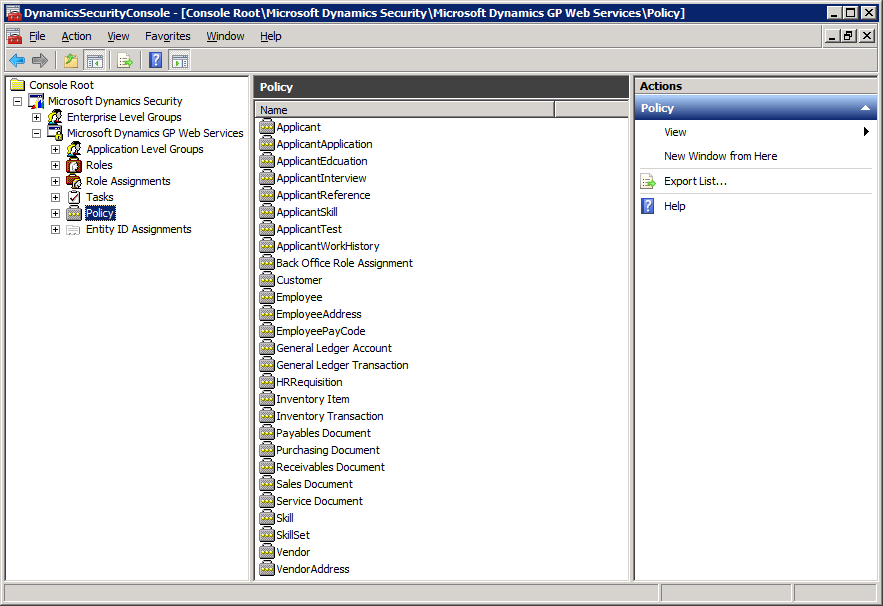
The final step is to expand Microsoft Dynamics Security, expand Microsoft Dynamics GP Web Services and select the Policy node; you should then see a list of policies displayed, as below. If you see this list then the Dynamics GP security service is working normally;
What should we write about next?
If there is a topic which fits the typical ones of this site, which you would like to see me write about, please use the form, below, to submit your idea.
1 thought on “Verifying the Install Of Web Services For Microsoft Dynamics GP 2013”