

 In the last post, I took a look at installing the Web Services Runtime; in this one I’ll step through the initial configuration of the web services.
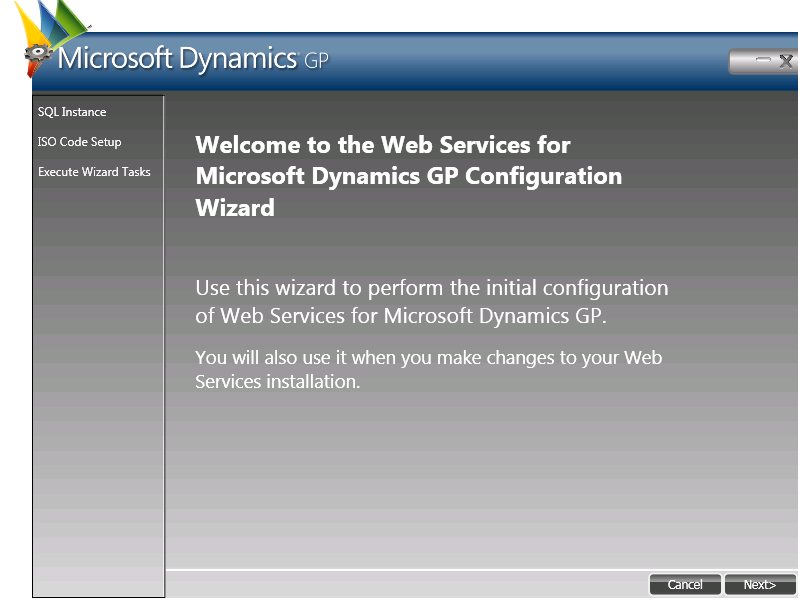
This is done using the GP Web Services Configuration Wizard (). Once launched click Next on the Welcome screen;
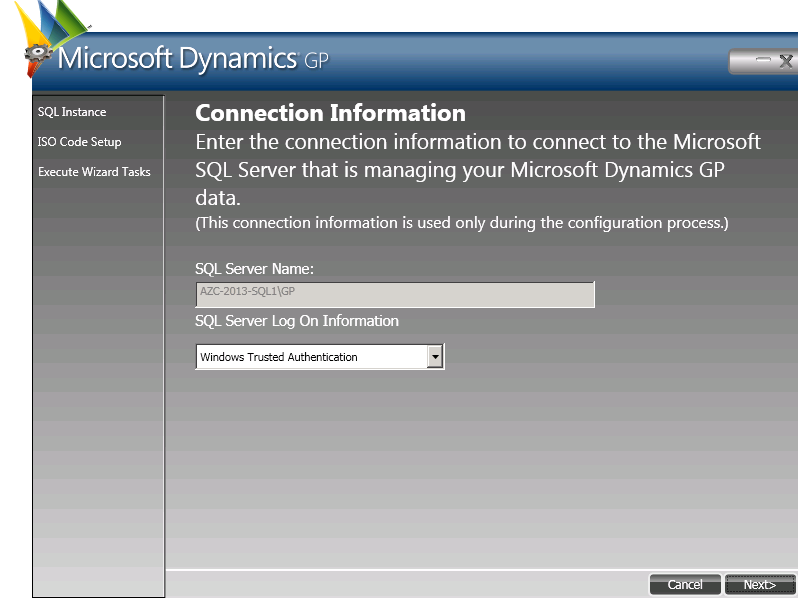
The Configuration Wizard will connect to the web services and default in the SQL Server Name for you and there is only one authentication method, Windows Trusted Authentication, available;
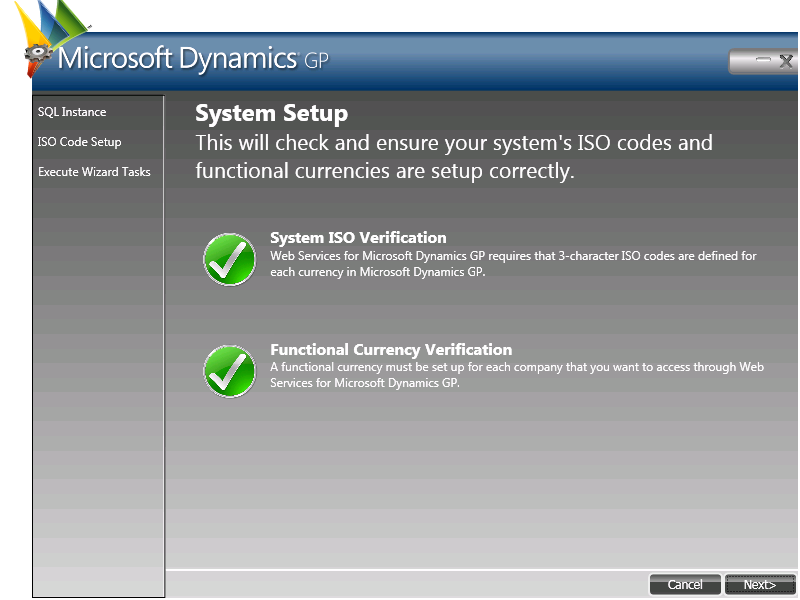
A check will be done to ensure a Functional Currency has been configured and that all currency codes have an ISO currency code assigned. If any errors are detected they will need to be corrected before proceeding;
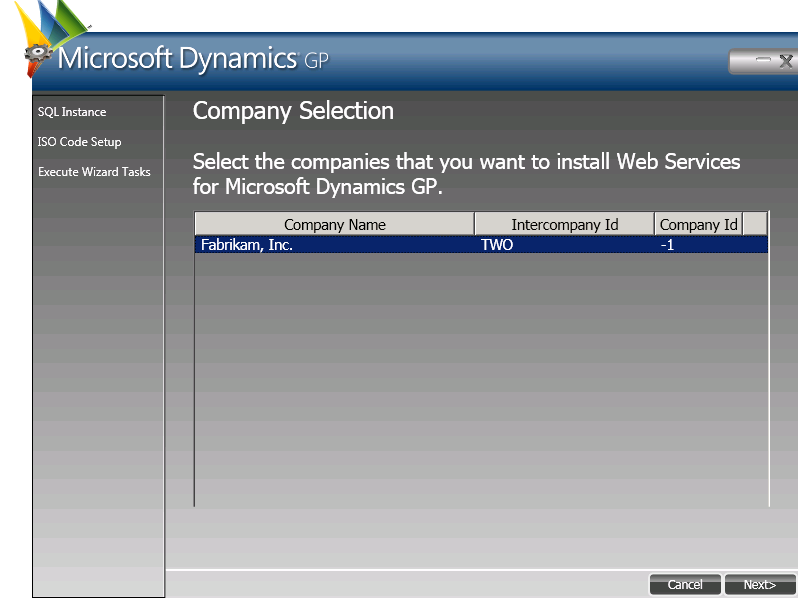
Select the companies for which the web services are to be used;
Check the Summary to make sure the correct companies have been selected;

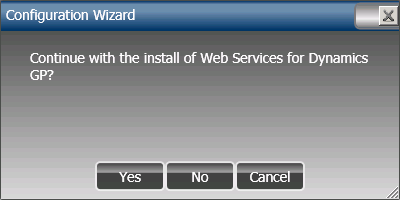
Confirm that the web services are to be installed;
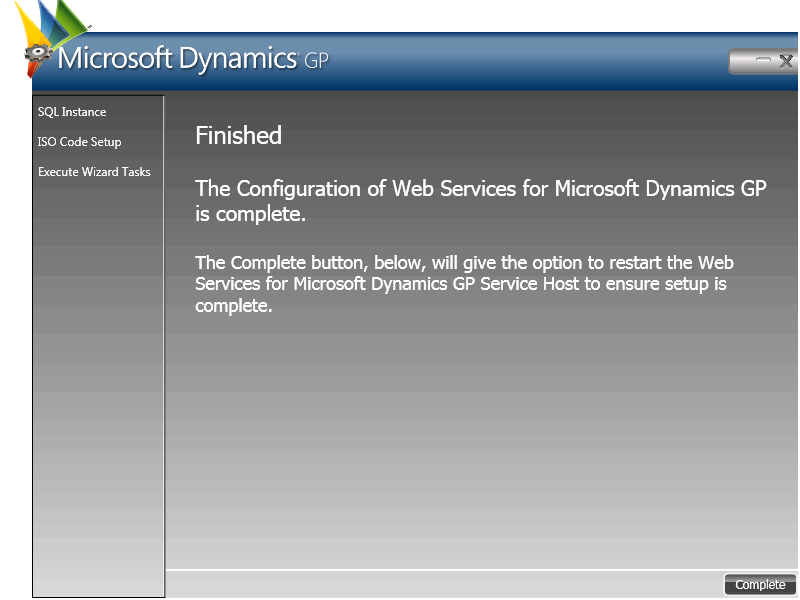
Once the installation is confirmed a page will be displayed. Click the Complete button to close the Configuration Wizard;
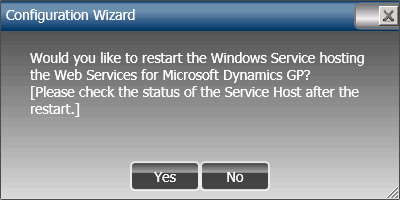
The final step of the configuration is a prompt to restart the Windows Service hosting for Microsoft Dynamics GP. This step is needed for the web services configuration to take effect but before clicking Yes ensure that no other processes would be impacted by restarting them immediately;
In the next post, I’ll take a look at how to verify that everything is working as expected.
What should we write about next?
If there is a topic which fits the typical ones of this site, which you would like to see me write about, please use the form, below, to submit your idea.
3 thoughts on “How To Configure Microsoft Dynamics GP 2013 Web Services Runtime”