

 This is the fifth post in the series on installing, configuring and preparing the Web Services for Microsoft Dynamics GP for use. So far I’ve covered the prerequisites, installation process, configuration and verification.
In this post, I’ve going to give a run through of configuring of Web Services Security Administrators.
Open the Dynamics Security Console (
![DynamicsSecurityConsole - [Console Root\Microsoft Dynamics Security]](https://static.azurecurve.co.uk/images/posts/2012/08/GP_Web_Services_Add_Security_Administrator/GP_Web_Services_Add_Security_Administrator_1.png "DynamicsSecurityConsole - [Console Root\Microsoft Dynamics Security]")
In the right hand pane, headed Microsoft Dynamics Security, click on Define Security Administrators and you’ll see a list of the current Security Administrators;
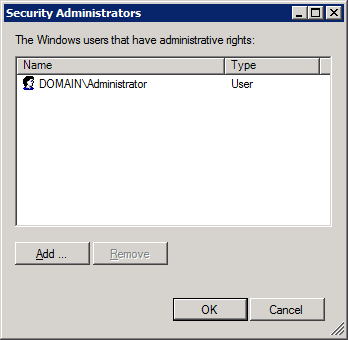
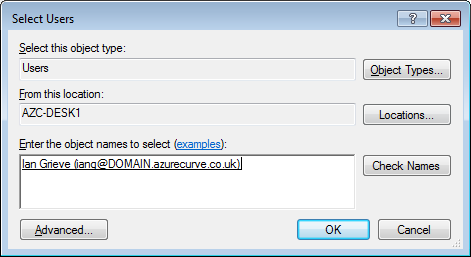
Click Add and select the users you want to add (in this case I’m adding my own Domain user account);
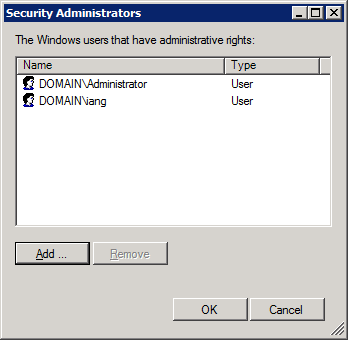
Click OK and you’ll be dropped back to the Security Administrators window where the newly added users will be in the list;
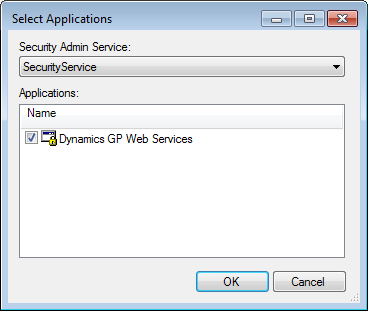
After accepting the addition of Security Administrators, you need to make sure the Dynamics GP Web Services application is selected for the Security Administrators to administer. To do so, click the Select Applications link (below the Define Security Administrators one) and check the Dynamics GP Web Services application;
For performance reasons, the security settings are cached and only refreshed, by defaut, every twenty minutes so when you update security or add a new user you may need to wait up to twenty mintes for the change to be available.
This default setting can be changed, to a minimum of five minutes, in the DynamicsSecurity.config file (C:\Program Files\Microsoft Dynamics\GPWebServices\ServiceConfigs\
DynamicsSecurity.config) by adding the following key to the <appSettings> section:
- <add key= “AzManCacheRefreshInterval” value=”300000”/>
The value is in milliseconds, so multiply the minute value you want to set by 60,000 to get the millisecond value.
If you need to refresh the changes immediately the Dynamics GP Service Host can be restarted but this will temporarily halt the Web Services so care needs to be taken in the timing of this.
Next in the series, I’ll be taking a look at installing the Management Tools on a client machine so the integration server doesn’t need to be accessed to make changes to security.
What should we write about next?
If there is a topic which fits the typical ones of this site, which you would like to see me write about, please use the form, below, to submit your idea.
3 thoughts on “How To Install The GP Web Services – Security Configuration”