

 This is the seventh, and final, post in the series on installing, configuring and preparing the Web Services for Microsoft Dynamics GP for use. So far I’ve covered the prerequisites, installation process, configuration, verification of the install, security configuration and client Management Tools installation.
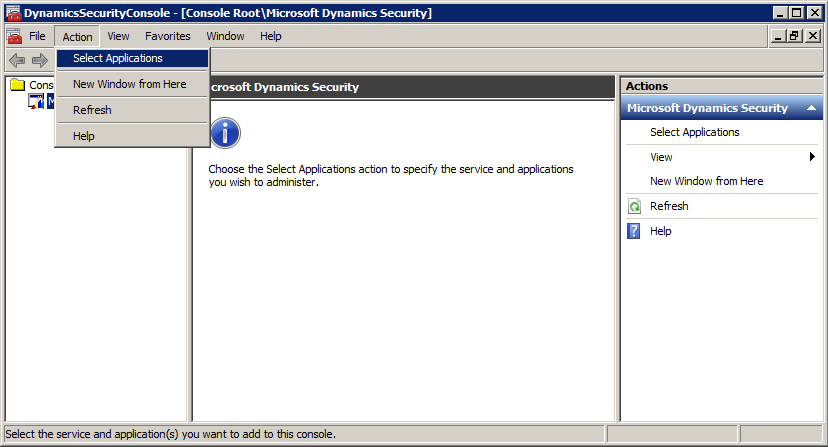
To configure the Management Tools, launch the Dynamics Security Console (
![DynamicsSecurityConsole - [Console Root\Microsoft Dynamics Security]](https://static.azurecurve.co.uk/images/posts/2012/08/GP_Web_Services_Configure_Management_Tools/GP_Web_Services_Configure_Management_Tools_1.png "DynamicsSecurityConsole - [Console Root\Microsoft Dynamics Security]")
Click the Actions menu and then click on Select Applications;
In the Select Applications window, select Security Service in the combo and then check Dynamics GP Web Services in the list;
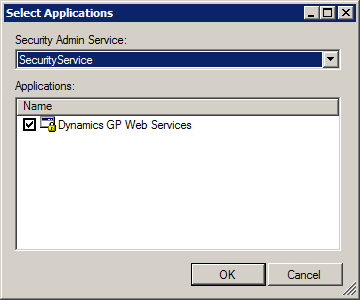
Click OK, and then check the policy categories are listed in the Policy node of the navigation pane (Console Root » Microsoft Dynamics Security » Microsoft Dynamics GP Web Services » Policy);
![DynamicsSecurityConsole - [Console Root\Microsoft Dynamics Security\Microsoft Dynamics GP Web Services\Policy]](https://static.azurecurve.co.uk/images/posts/2012/08/GP_Web_Services_Configure_Management_Tools/GP_Web_Services_Configure_Management_Tools_4.png "DynamicsSecurityConsole - [Console Root\Microsoft Dynamics Security\Microsoft Dynamics GP Web Services\Policy]")
Once you’ve checked the above, the Web Services Management Tools are ready for use on the client machine.
And that bring as me to the end on the series on installing Web Services for Microsoft Dynamics GP. There is a variety of avenues you can go down once the Web Services have been installed and I will be covering one of them over the next couple of weeks. Stay tuned.
What should we write about next?
If there is a topic which fits the typical ones of this site, which you would like to see me write about, please use the form, below, to submit your idea.
2 thoughts on “How To Install The GP Web Services – Configure Management Tools”