

 Now that the Professional Service Tools Library (PSTL) has been installed it’s time to take a look at some of the functionality available.
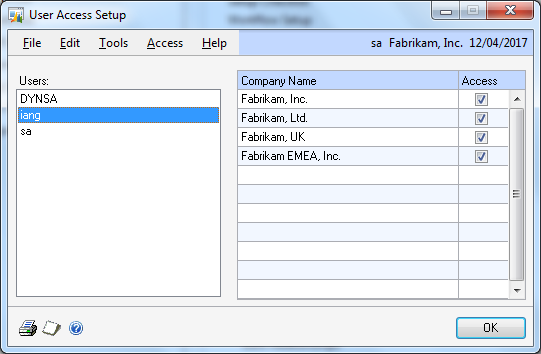
The first one I’ll look at is how to disable a database so users cannot log in. Without using PSTL, to deactivate a database requires you to use the User Access window () and select each user in turn and uncheck the company to be disabled. If you have more than a handful of users, this can take a long time to do but with PSTL all users can be disabled very quickly.
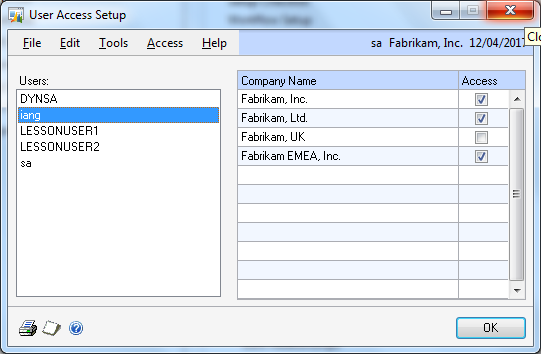
I am using a demo system to do this which only has a handful of users in it. I’ll be using the iang user who currently has access to four companies;
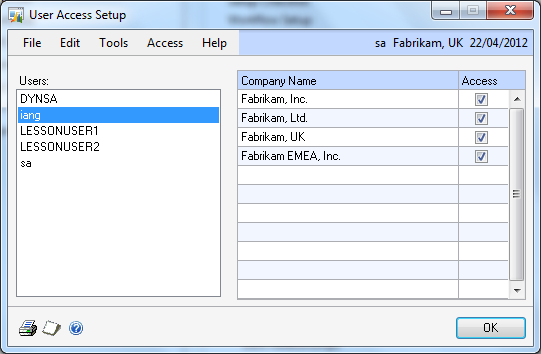
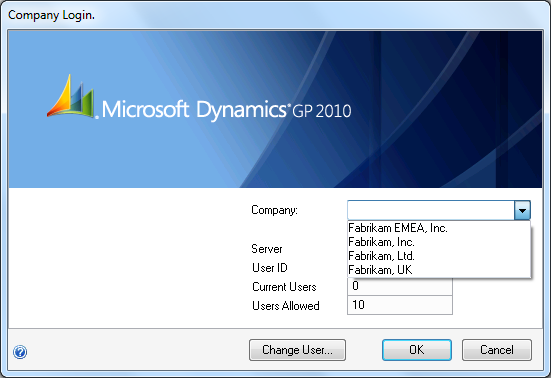
When I log into Microsoft Dynamics GP with this user I see all four companies listed in the Company selection field;
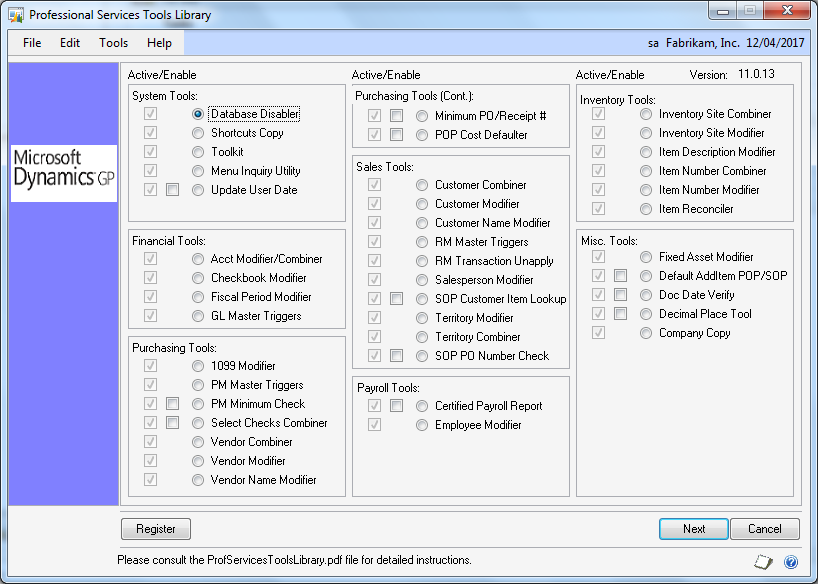
If we open PSTL the first option in the Active/Enable section is the Database Disabler;
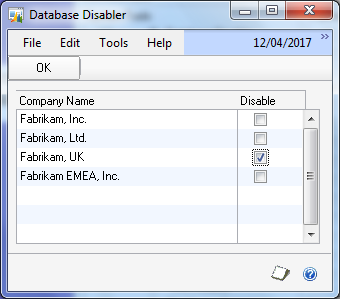
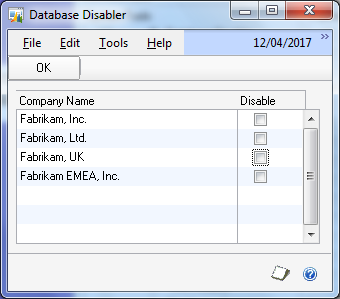
If we select this option and hit Next we are shown the Database Disabler window. Select the check box next to the company to be disabled, I’ve selected the check box next to Fabrikam, UK, and click OK;
If we close PSTL and go to User Access you’ll notice that the Fabrikam, UK company is no longer available to iang (and any other users except sa who had access);
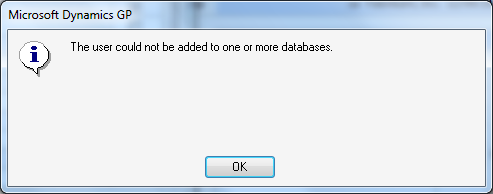
If I try to enable the company again via this window I get the following error;
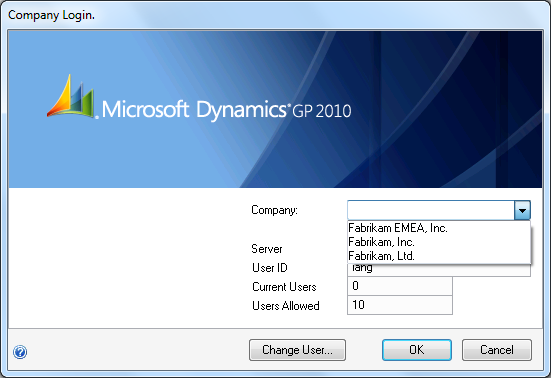
And when I log in as iang, the company is no longer available for selection;
To re-enable the company, load PSTL, access the Database Disabler, remove the check and click OK;
In User Access, all users who previously had access to the company will automatically have it regranted;
The thing to remember is that the Database Disabler disabled the company for all users other than sa; so if you have some database maintenance to do you can switch access off and perform the maintenance using the sa user while keeping all other users out of that company.
What should we write about next?
If there is a topic which fits the typical ones of this site, which you would like to see me write about, please use the form, below, to submit your idea.
I used Database Disabler on GP 2013 to disable all databases before I began and upgrade to GP 2016. That upgrade included a server migration.
Now when I try to login on the new install (upgrade went fine) no companies are shown. I suspect it is because of database disabler, but there isn’t a database disabler listed in PSTL on GP 2016.
So I need to reverse whatever Database Disabler does on my new instance so that users can get logged back in, thanks.
Database Disable is now Take Company Offline in the Administration area page Utilities section.