

 One of the features introduced in Microsoft Dynamics GP 2010 was the Word templates which could be used instead of the Report Writer reports (known in 2010 onwards as Standard reports). There were several Word templates shipped out of the box with GP that could be amended quite easily but if you needed to use one of the others then a lot of work was needed to manually create the template from scratch.
In Microsoft Dynamics GP 2010 R2, the Word Template Generator, available as a separate download from PartnerSource (login required) was introduced which would generate the base Word template which can then be amended as required.
To get started with the Word Template Generator, we first need to produce an XML file of the Standard report to use as the basis for the template. In this example I’ll use the SOP Blank Picking Ticket Order Entered report.
To start print this document as usual from Print Sales Documents ();
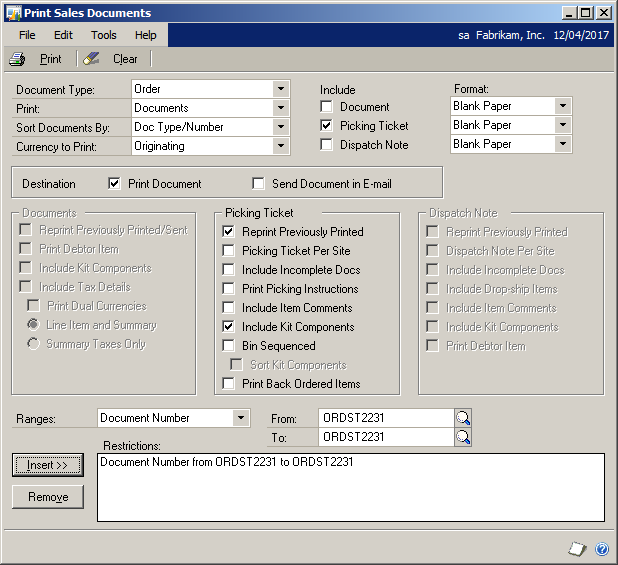
In the Report Destination window select the output of File, enter a File Name and pick the File Format of xml;
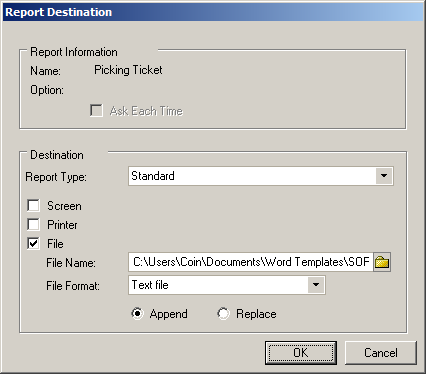
For ease I have created a shortcut to the TemplateGenerator.exe in the folder to which I output the XML. To convert the xml into a Word Template it is as simple as dragging and dropping the XML onto the shortcut;
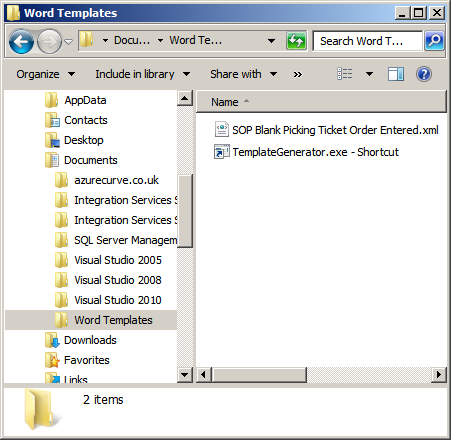
The Word Template Generator then produces the docx file;
Now the Word Template has been generated it needs to be loaded into GP. This is done in Report Template Maintenance (). Pick the required report in the Report Name field (in this xcase the SOP Blank Picking Ticket Order Entered);
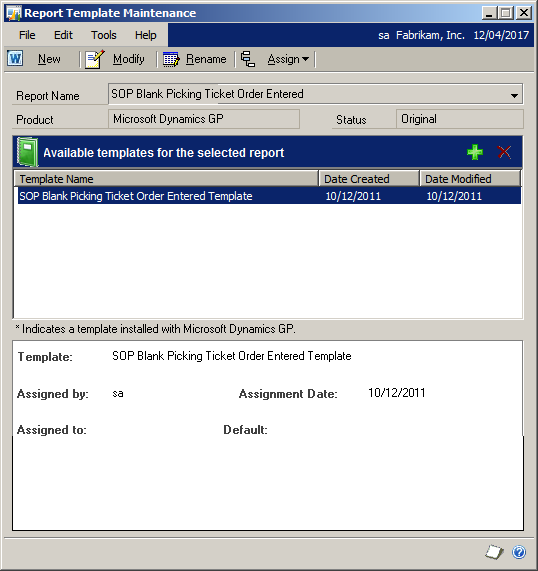
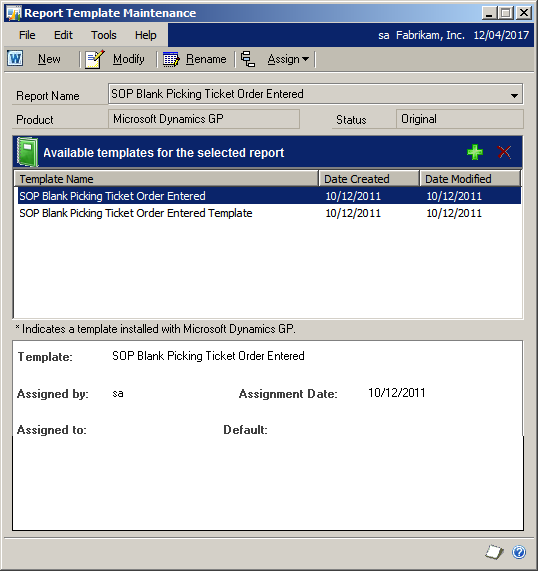
Then click the green cross and select the newly produced Word Template. GP will pull the file in and display it in the Templates list;
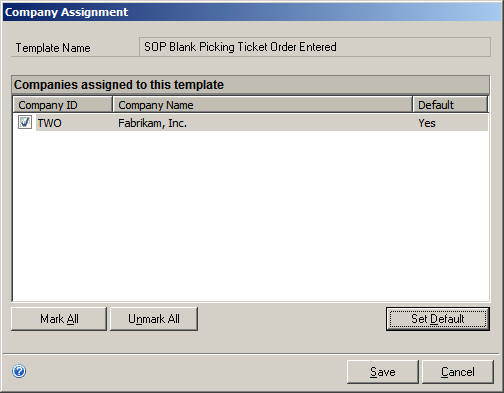
Grant access to the relvant companies and you will be able to use the Word Template instead of the Standard report;
When using the Word Templates remember there is a problem, when you tick Allow printing of standard report when template is available on Template Configuration (), which is due to be looked at for SP3.
What should we write about next?
If there is a topic which fits the typical ones of this site, which you would like to see me write about, please use the form, below, to submit your idea.
Hi Ian,
Great article… I’m running into a problem I can’t seem to get past with this. I’m creating a Word Template for the Blank Invoice Form for the Invoicing module (not SOP), so, template generator is the way to go.
I’ve got the docx template no problem from the word generator and exporting the report to xml. I just can’t “import” it back to GP’s Template Maintenance. I found the report, then created a “New” template in the TM window, but clicking on the green Add button does nothing. So all I have is the new template which is the blank slate. So weird, I can’t figure out what I’m doing incorrectly!
Any thoughts?
Jen
Hi Jen,
Do you mean literally nothing happens? If so, is the machine you’re doing the load the same one you created the template on?
Ian